
Godox TT350 in Master Mode
Set the TT350 to Radio Master Mode
Now, we’re going to set the flash, making sure that it’s ready to send orders. Start by turning the flash on. Just press and hold the Power button to the right of the wheel and you should see the screen on.
Set to Radio Master
When you turn the TT350 on, you will see that it’s in TTL or Manual mode and ready to work on-camera. Follow the next steps to set it on Radio Master mode.
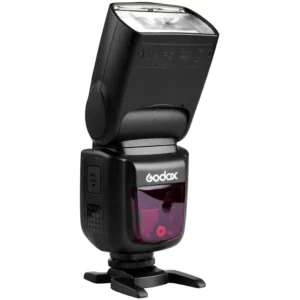
Press and hold the SYNC button until you see an antenna icon blinking on the screen.
Rotate the wheel clockwise until you see an “M” next to the antenna icon.
Press the SET button.
The Flash is now in Radio Master mode.
Set the Channel
The next step is to set a channel for the flash to send orders to. Just follow the next steps:
Press and hold the SLAVE button (it says GR/CH below it) until the channel number blinks on the screen.
Rotate the wheel until you see the channel number you plan to use.
Press the SET button to confirm your choice.
As you can see in the image, I set mine to channel 9.
Set the ID
ID is an optional function you can use to avoid interference from other Godox flashes, in case they are set to the same channel. If you previously chose to use the ID function, follow the next steps:
Press and hold the ZOOM button (it says C.Fn below it) until the Custom functions appear on the screen.
Rotate the wheel until you find the ID function.
Press the SET button.
Rotate the wheel until you select the ID number you chose for your setup, or you turn it OFF.
Press the SET button to confirm your selection.
Please notice that setting an ID number is optional, but if you decide not to use the ID function in your setup, make sure it’s Off. As you can see in the image, I set the ID number to 18.
The flash is ready to send orders to the flash groups. Now, we need to decide the orders we want to send.
Select and Configure Groups
The flash is ready to send orders to the flash groups. Now, we need to decide the orders we want to send and to which group.
Select a Group
You can select a group by pressing the SLAVE button repeatedly, so you jump between groups M, A, B and C. If available, group M is the TT350 flash working as a transmitter.
Set Group Mode
When you have a group selected, you can change its mode by pressing the MODE button repeatedly. The group will jump between the group being in TTL, Manual or Off.
Set Group Power
When you have a group selected, you can adjust its power setting by pressing the SET button, and then rotating the wheel on the flash.
If the selected group is in Manual mode, you should see the power changing between 1/1 (full power) and 1/128 (8 stops down). Every click of the wheel changes power by 0.3 stops.
If the selected group is in TTL mode, you should see the Flash Exposure Compensation (FEC) changing between -3 (under-exposed three stops) and +3 (over-exposed three stops). Every click of the wheel changes power by 0.3 stops.
I set group B to Manual mode and 1/16 power, as you can see in the image.
Set Group Zoom
You can’t adjust the zoom setting of remote groups when using the TT350 in Radio Master mode.
If you change the Zoom setting on the TT350, it will only work for the M group (the TT350 flash you’re setting as transmitter).
Testing
Let’s test! If you press the Tester button (red button with a lightning bolt icon), you should see the remote flash firing.
¿Do You Like This Guide?
If you like this guide, consider donating so I can keep improving it by adding more flashes and transmitters to it.